Remove Scratches from Photo
Clear the scratches and scuffs from an old print or scan, and keep the faces you remember. Compare every line with your original before you save.
- ✓Free to try
- ✓No sign-up
- ✓Faces checked against your scan
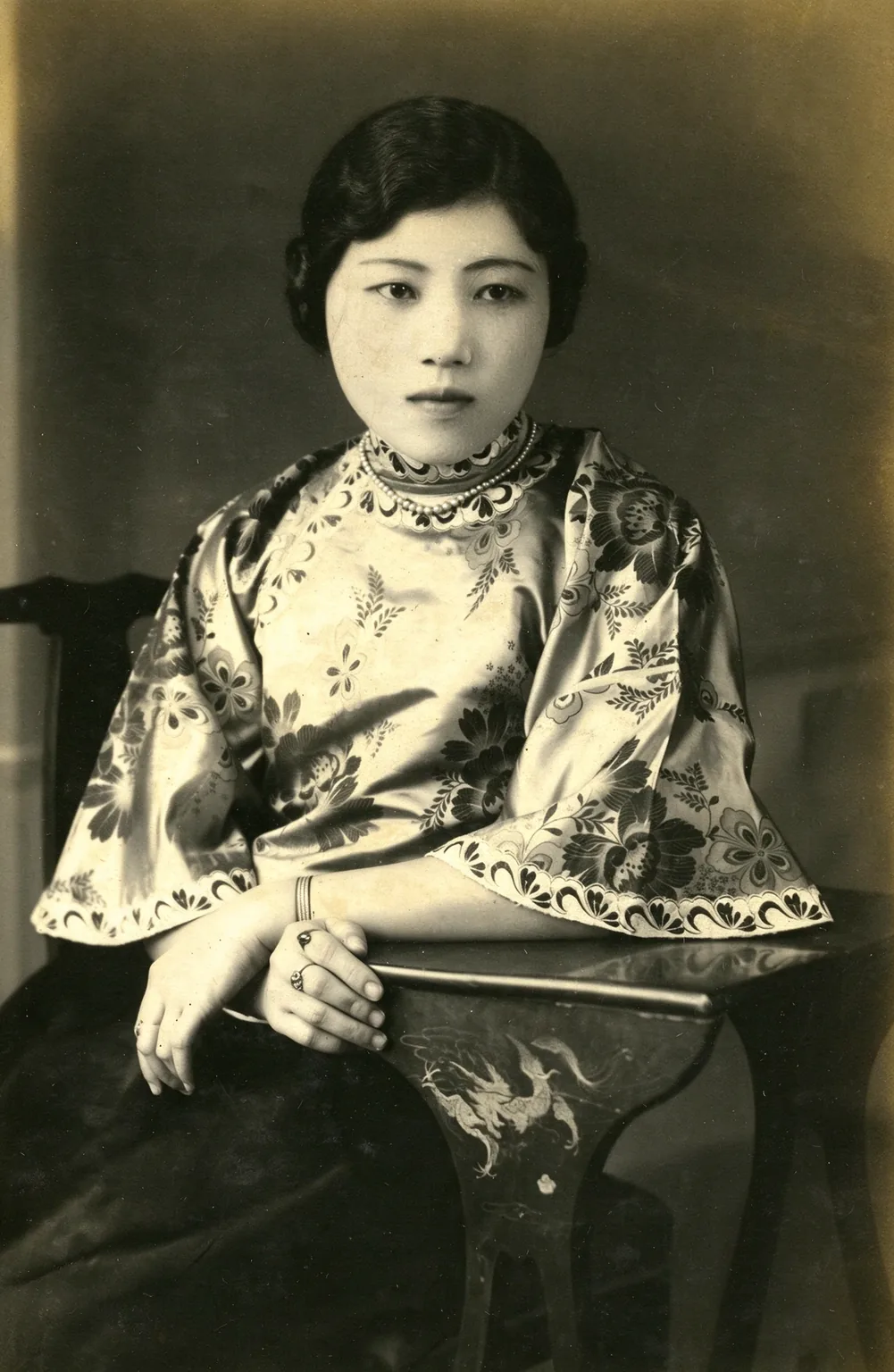
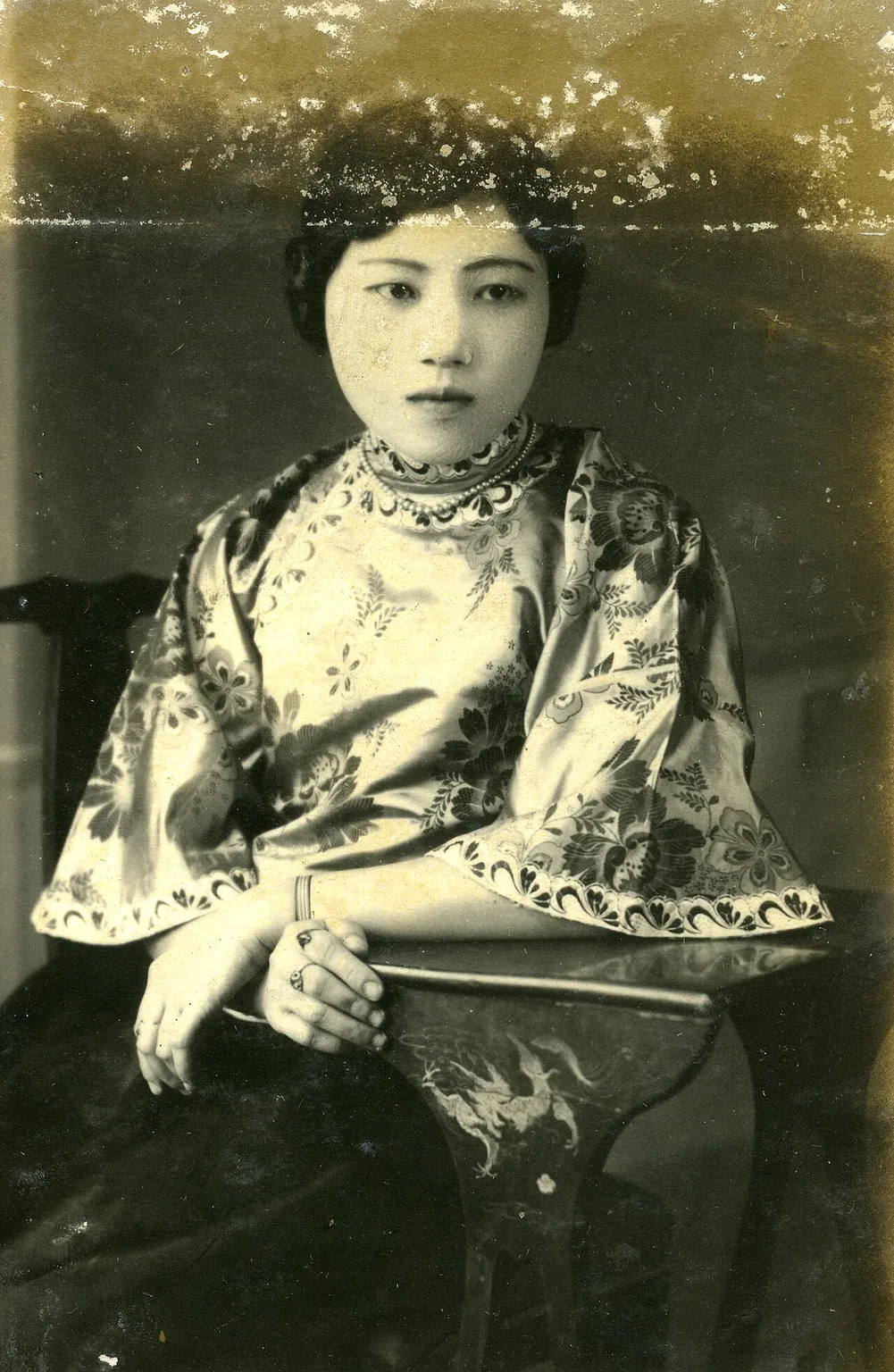
Drop a scratched photo here
or paste with Ctrl+V
Free to try, no sign-up. Download with a free account.
Can AI remove scratches without changing the face?
Yes for most scratches. Lines and scuffs are rebuilt from the picture around them, and every face is compared with your scan.
A deep scratch right through a face is rebuilt too, so check that face before you print.
Scratches gone, same people
Before and after pairs from our own tests.
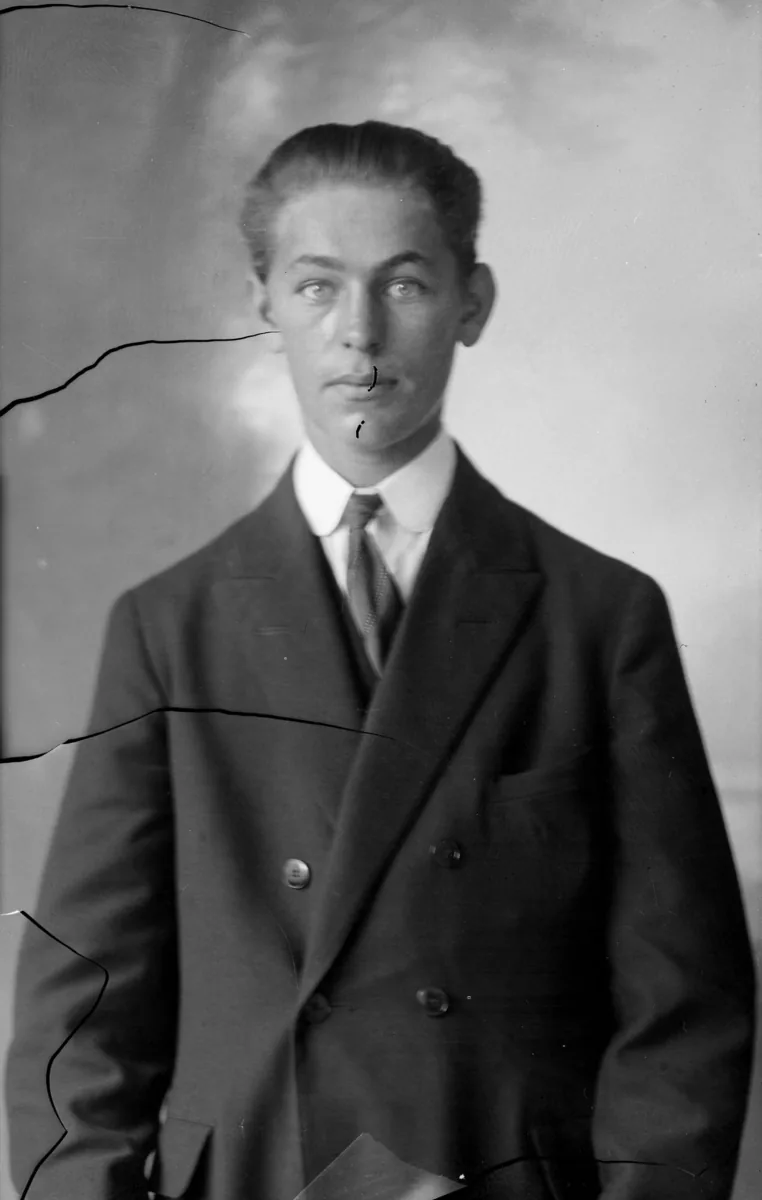
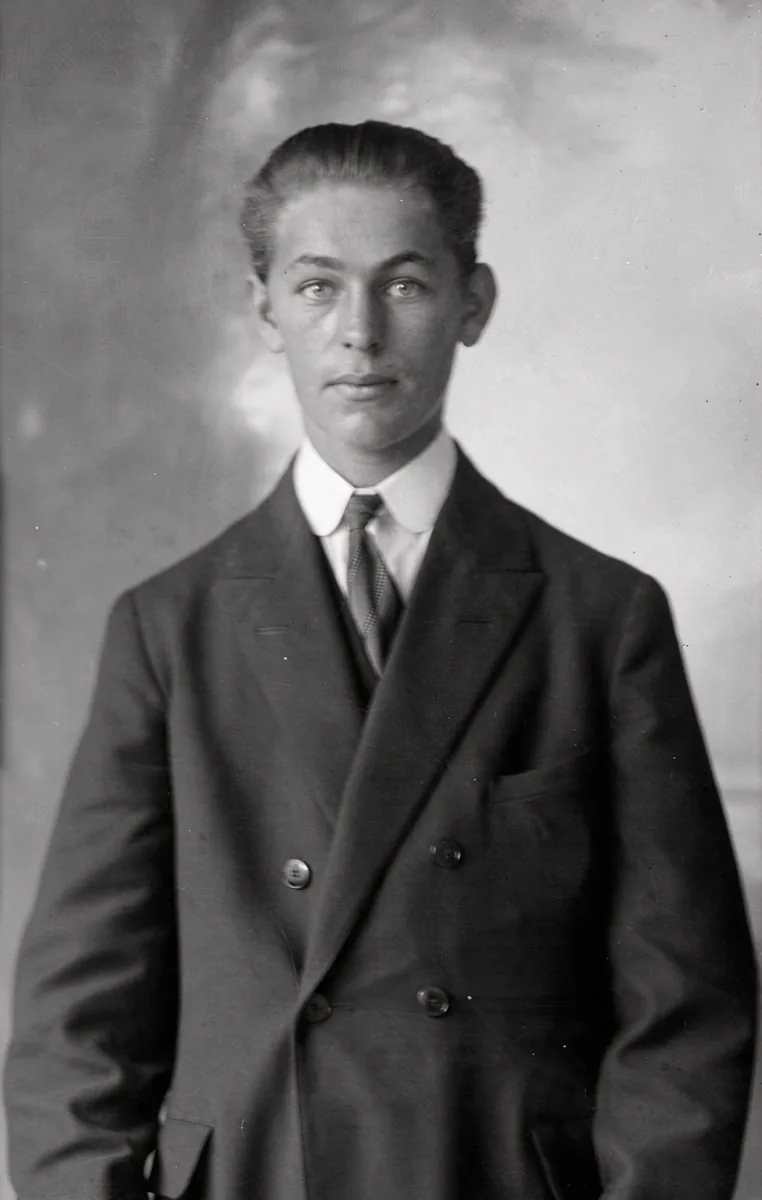
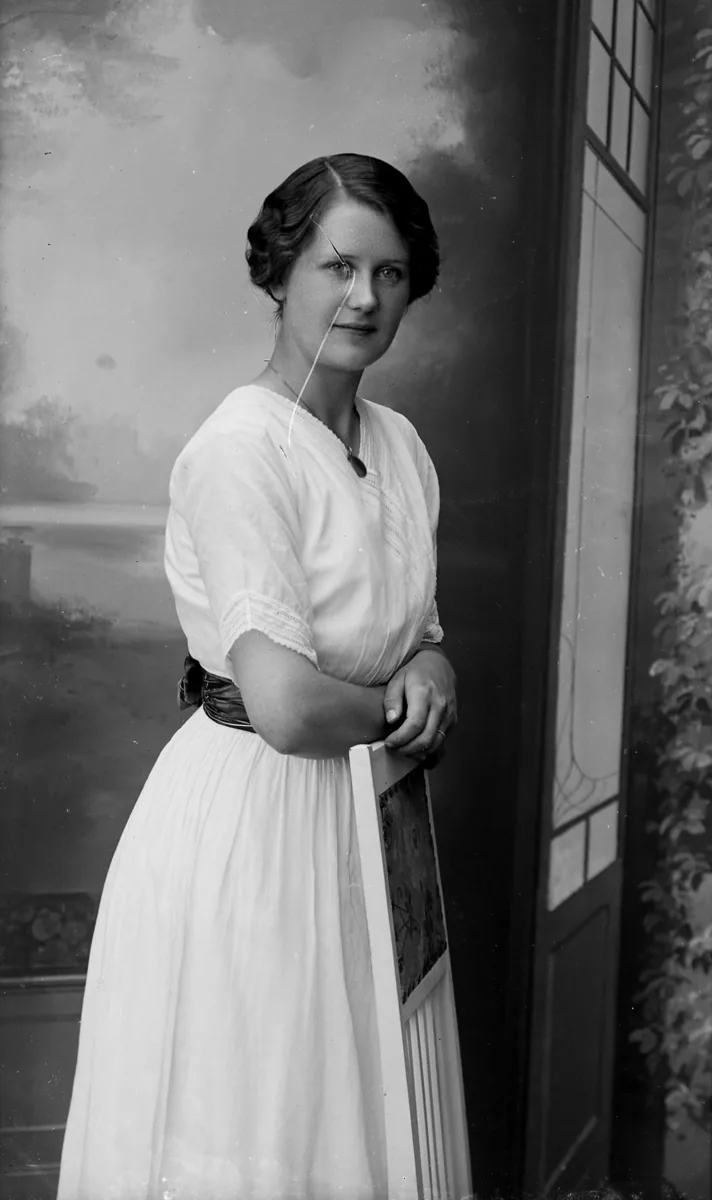
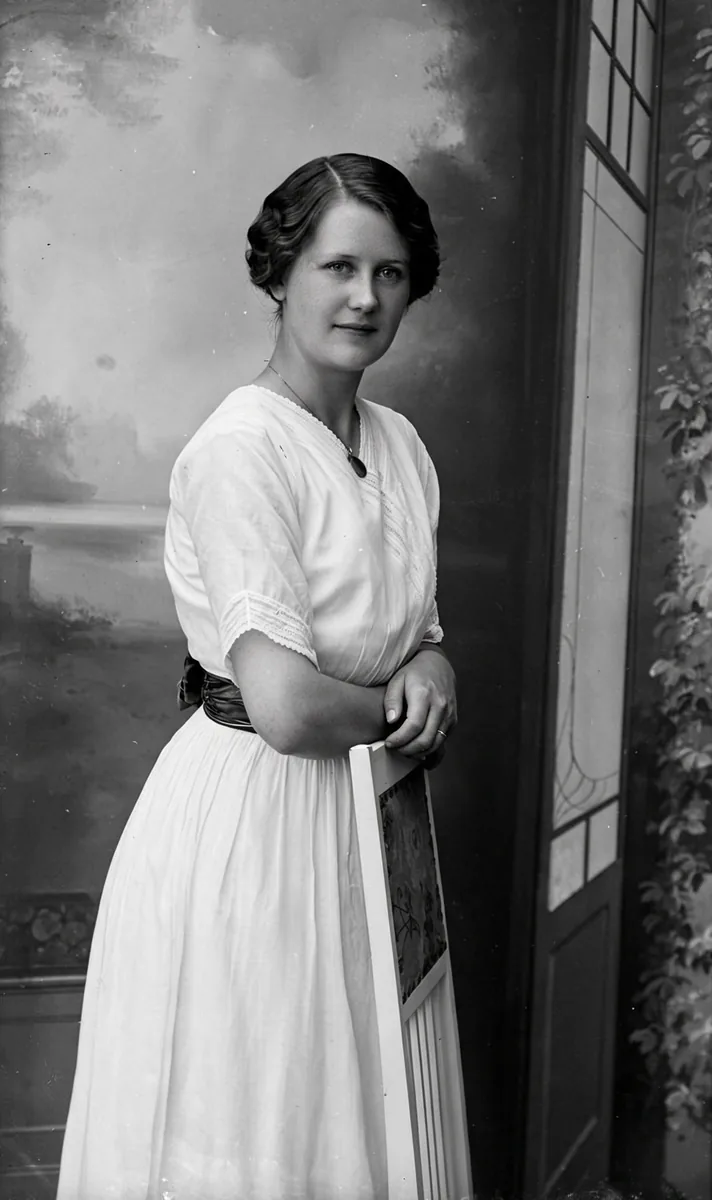
BeforeAfterA scratched studio portrait
Lines across the cheek and collar cleared, the expression unchanged.
 Before
 After
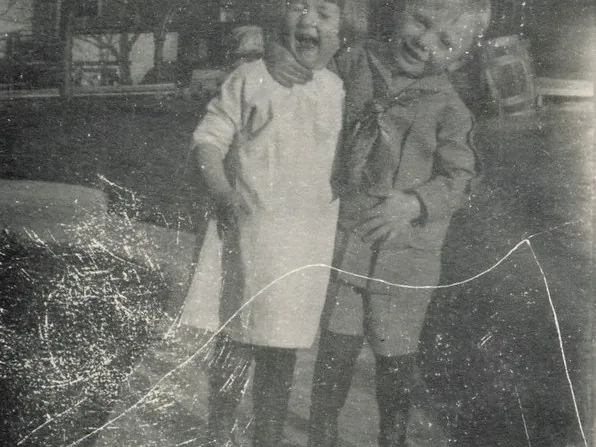
A family snapshot, scuffed in a wallet
Scuffs lifted from the faces and the background.
 Before
 After
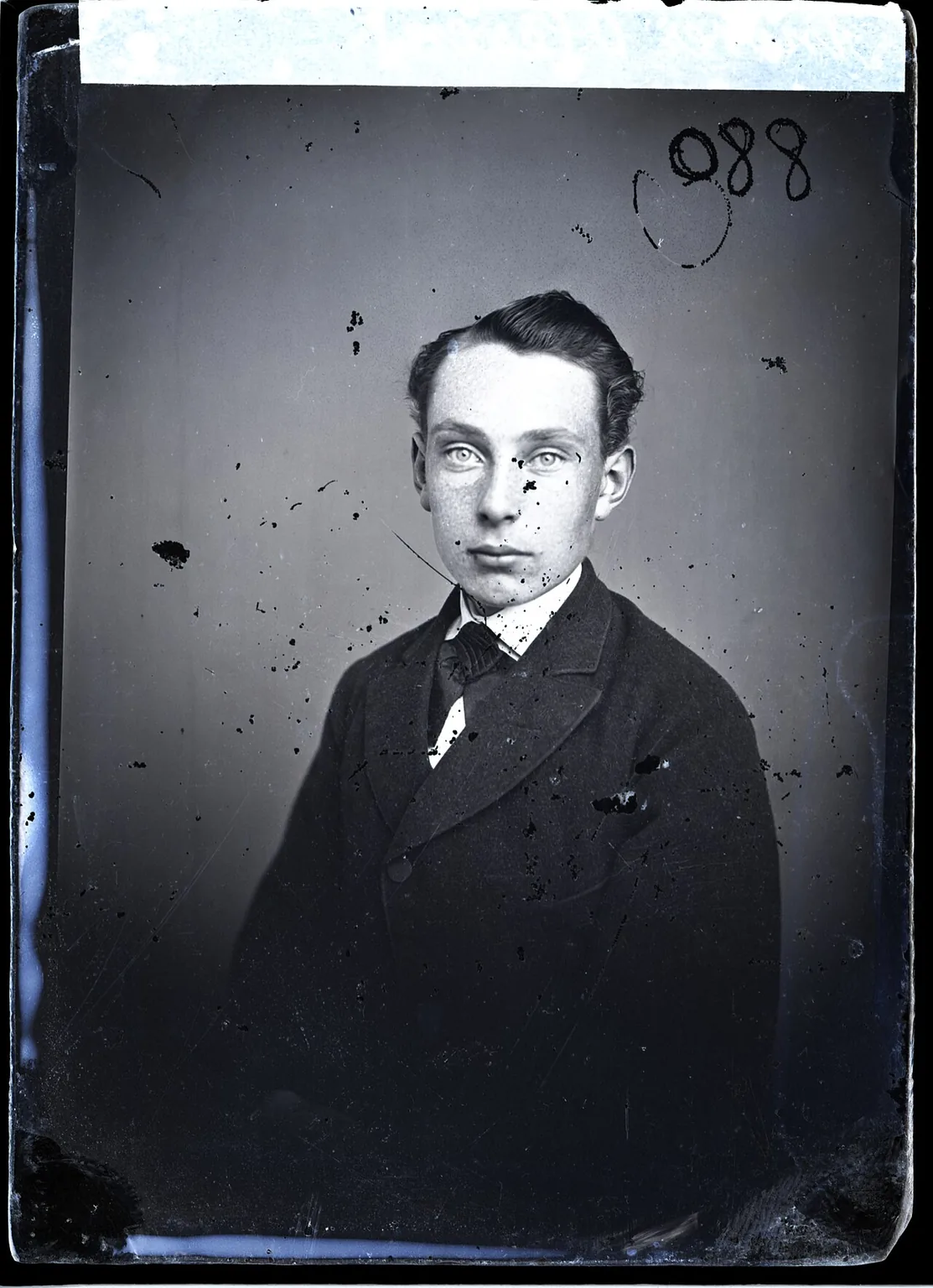
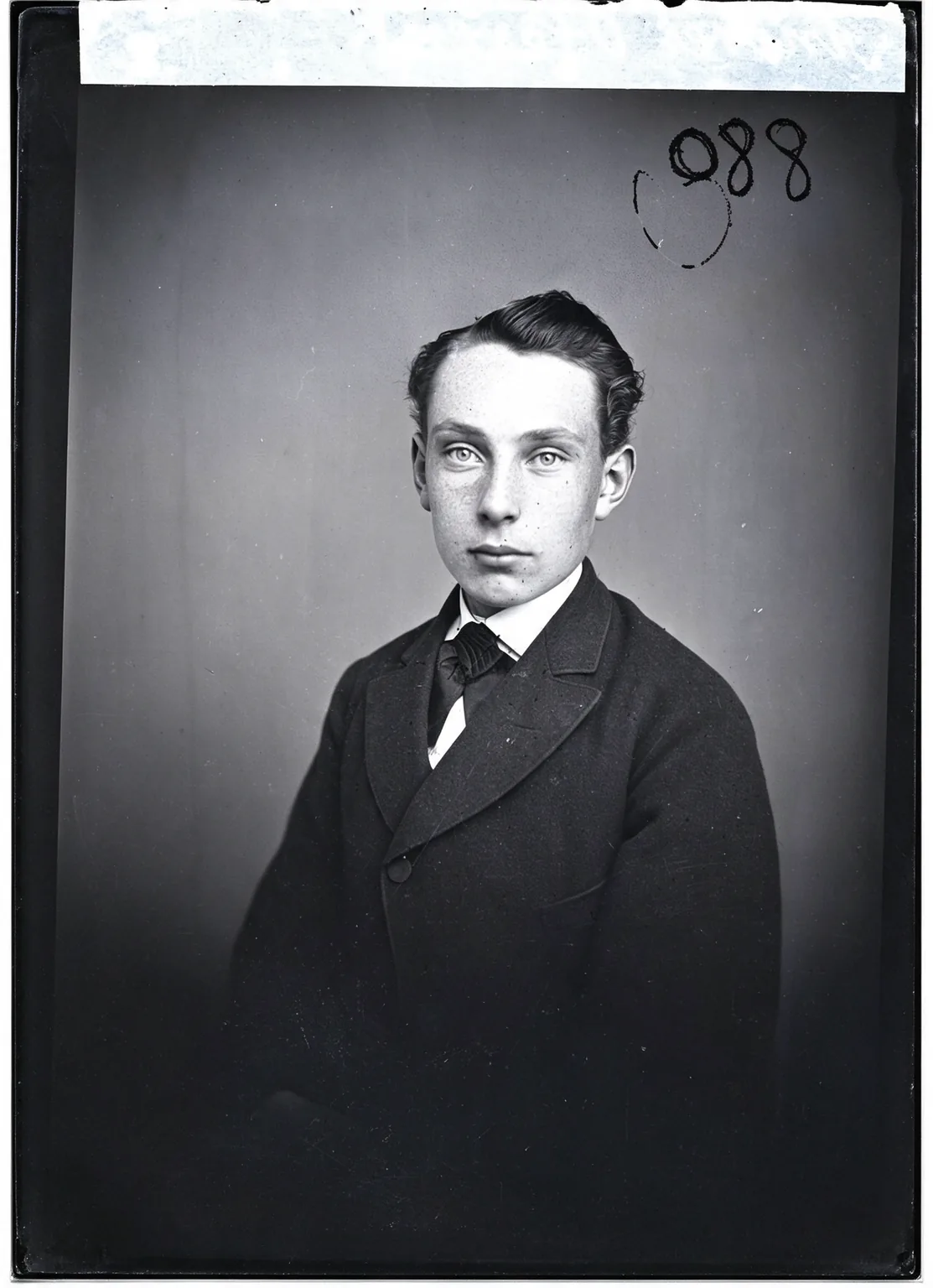
A scanned print with fine lines
Hairline scratches gone, the paper grain still there.
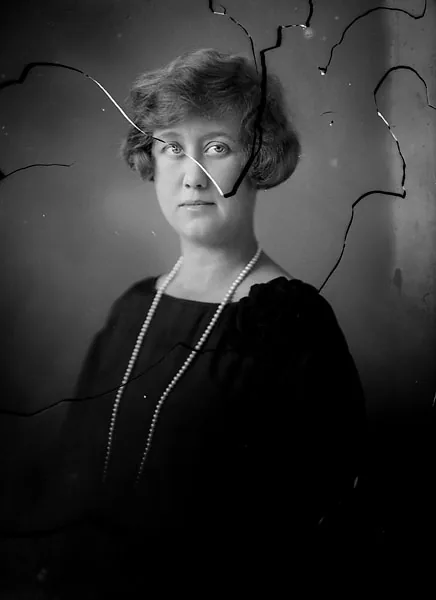 Before
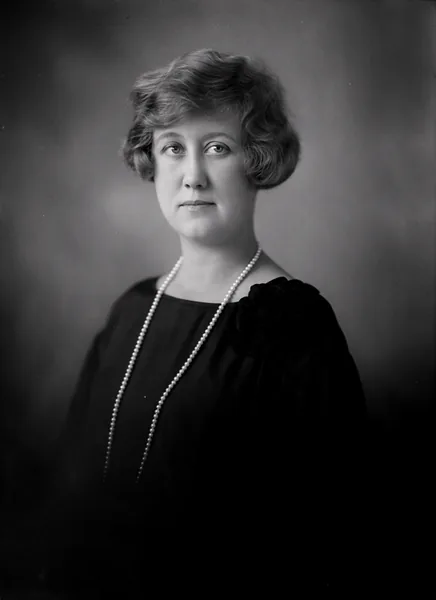 After
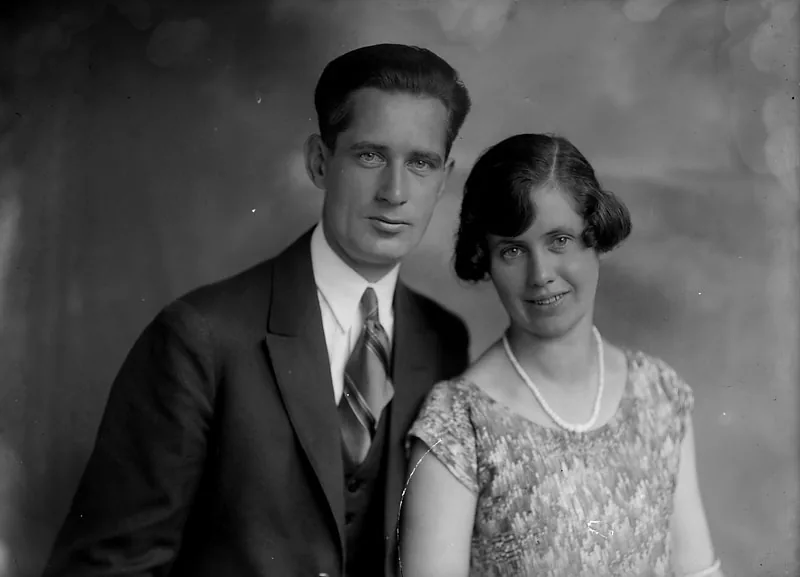 Before
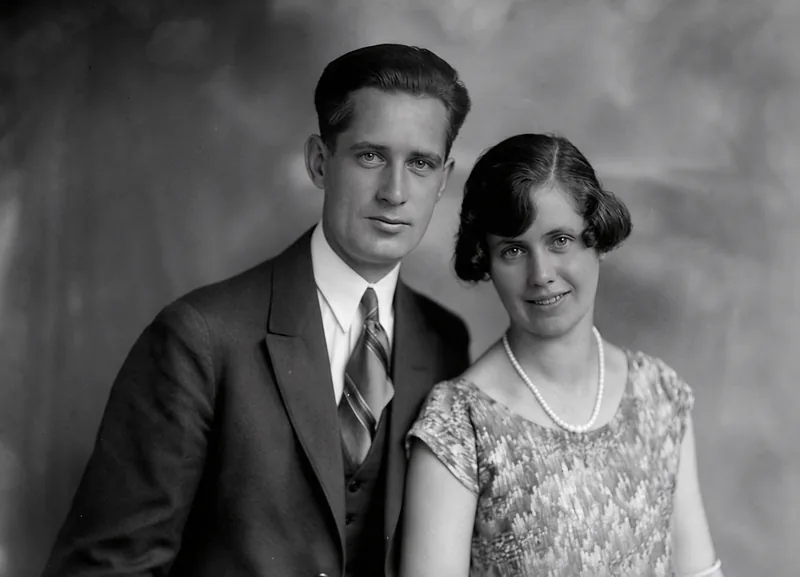 After
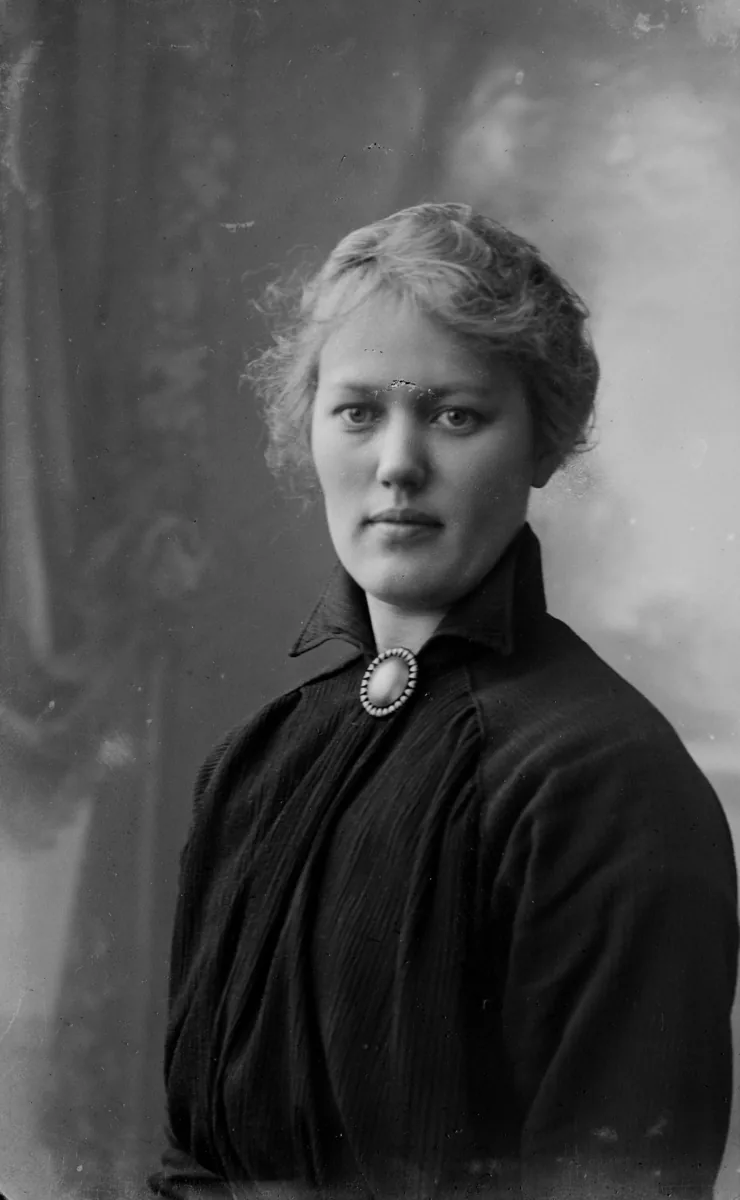 Before
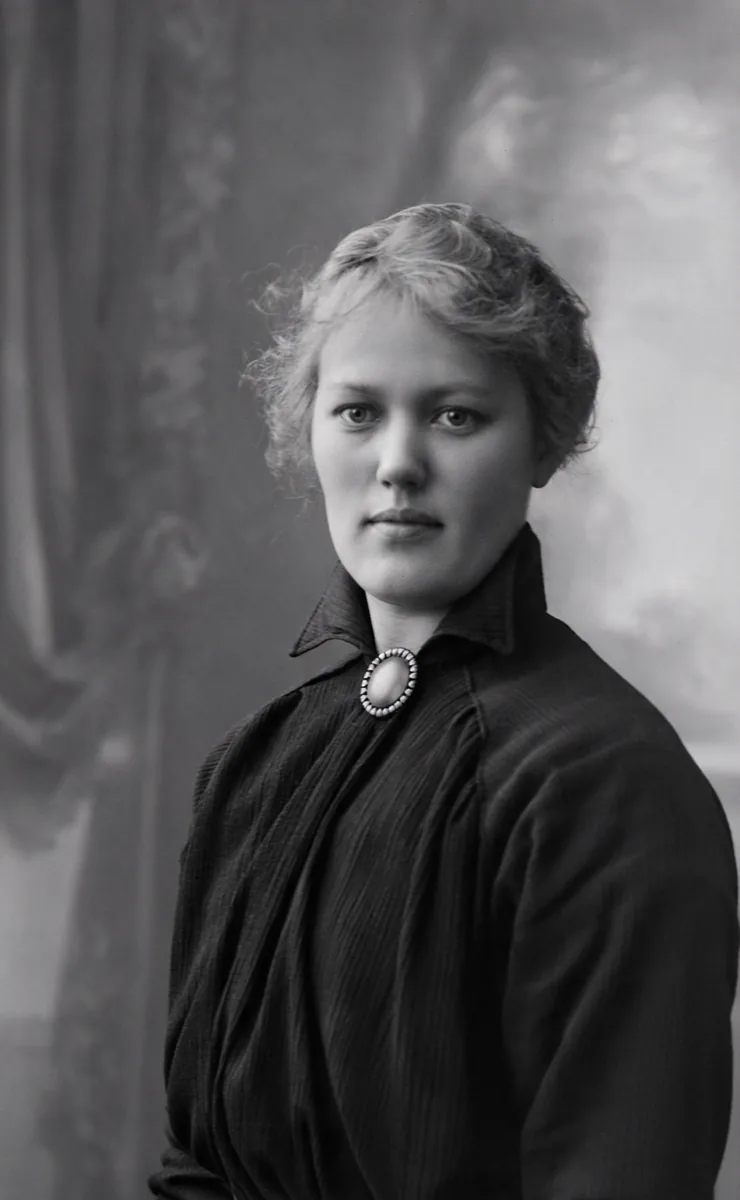 After
 Before
 After
 Before
 After
Kinds of scratches, and what each looks like
Hairline scratches are thin, light lines from sliding a print in and out of an album or a box. They sit on the surface, the picture shows on both sides, and they clear almost completely.
Scuffs are patches of dull, matte grain where a print rubbed against something for years, often in a wallet or a sleeve. They look like a haze over part of the picture and clear well.
Deep scratches cut through the picture layer to the white paper underneath. You see a bright line with sharp edges. They clear too, but whatever was under the line is rebuilt, so check faces and lettering.
Cracks in the surface look like a fine web of lines, common on glass plates, tintypes and prints that were bent. Each crack is treated like a scratch; heavy webbing over a face needs a close look.
Creases and folds are not scratches: the paper itself is bent, and the line often has a shadow beside it. A flat scan helps, and Restore old photos handles the rest.
- Hairline scratch · Thin, light line on the surface
- Scuff · Dull, hazy patch
- Deep scratch · Bright white line, sharp edges
- Surface cracks · Fine web of lines
- Crease or fold · Bent paper with a shadow beside it
Who brings a scratched photo here
The photo, why it matters, and what you can do with it after.
The photo someone carried for years
A small print kept in a wallet picks up scratches across every face. Clear them and you can enlarge it, frame it, or print a copy for each of the family.
One good photo, a few days to the service
There is often only one print, and it is scratched. A clean copy is ready for the order of service, the slideshow or the frame by the guest book.
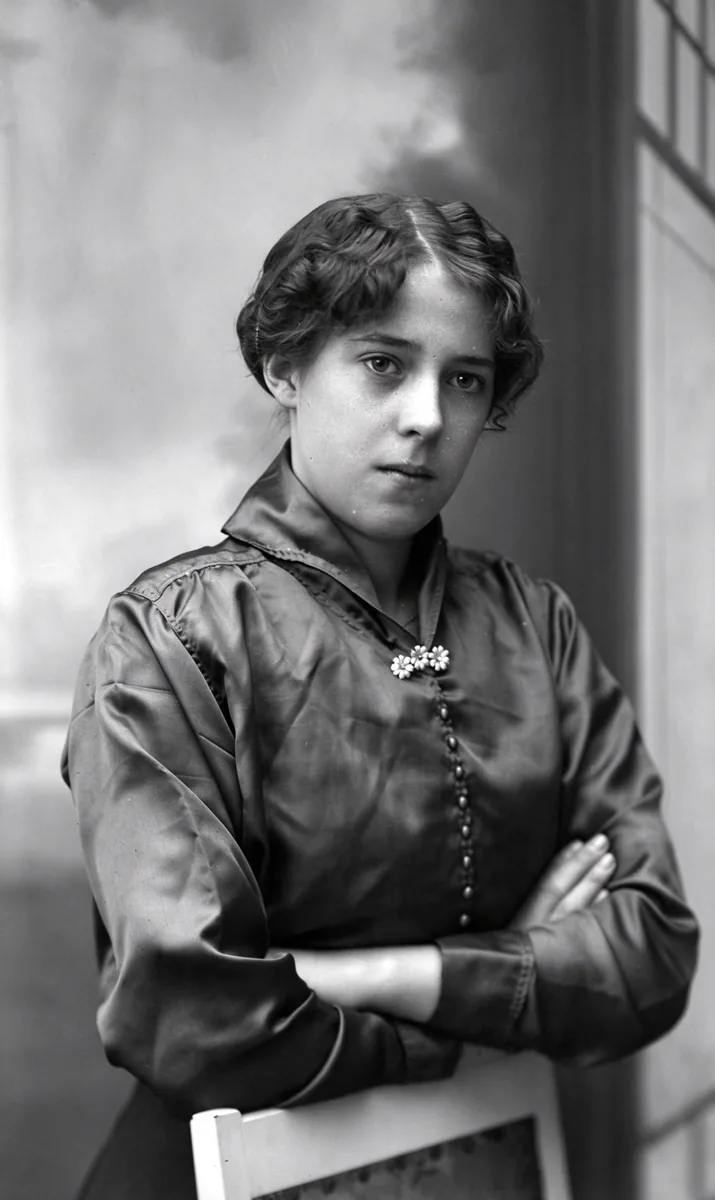
Album prints scuffed by the plastic sleeve
Years in a sticky album leave fine scuffs over whole pages. Clean the ones you love and make a photo book or a print for each sibling.
A wedding photo for the 50th
The only copy of the wedding day has a scratch through the dress. Clear it and give the couple a framed print that looks like the day, not the years since.
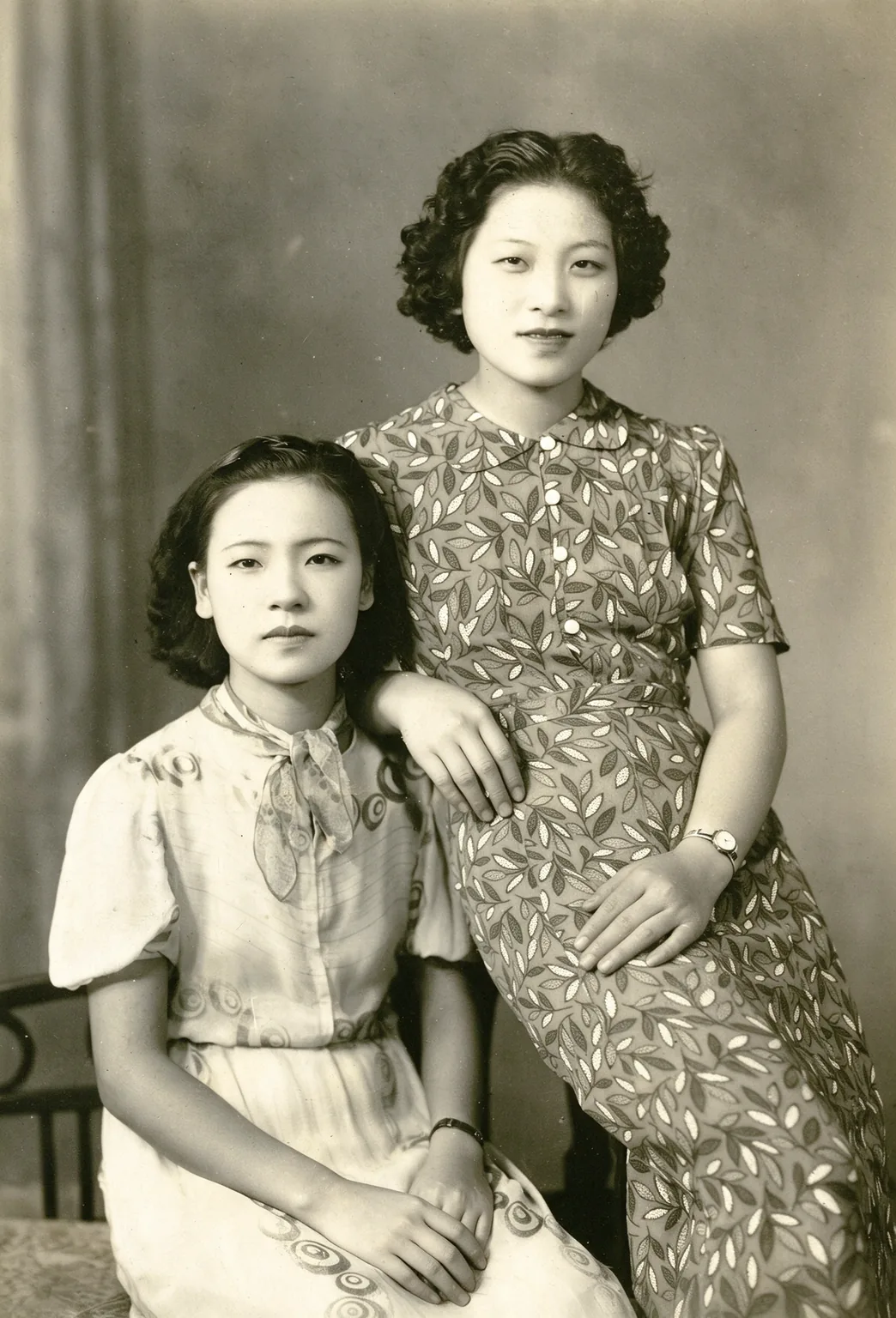
A great-grandparent for the family tree
Old portraits are often the most scratched. Add a clean copy to the tree and keep the untouched scan beside it, so relatives can see what was repaired.
Dust and scratches on scanned negatives
Lab scans and home scans of film often come back with hairs, dust and fine lines. Upload the scan and clear the marks without retouching frame by frame.
How to remove scratches from a photo in 3 steps
Upload, choose color, compare.
Upload the scratched photo
A flat, evenly lit scan or phone photo works best. Take it out of the frame first, so the glass adds no new lines.
- Add natural color● Off by default on this page
Keep it black and white, or add color
Add color starts off here, so the photo stays black and white. Turn it on for a repaired copy in natural color.
- BeforeAfter
Compare, then download
Drag the line across each face and every scratch before you save. Your original scan is not changed.
How scratches are removed without blurring the photo
A scratch is a thin line where the picture is missing. Quick retouching tools blur the line or copy a nearby patch over it, which is why so many repaired photos look smudged up close.
Revivo rebuilds each line from the picture around it. A cheek carries on as a cheek, and the grain of the old print runs through the repair.
Faces get extra care. After the repair, every face is compared with your scan. One that cannot be confirmed is marked for you to check; someone new is never delivered.
Names and dates written on the print are laid back over the result. A scratch next to a signature doesn't take the signature with it.
- Lines · Rebuilt from the picture around them
- People · Every face compared with your scan
- Writing · Names and dates put back
Is it a scratch? What clears and what doesn't
- Clears wellFine lines, scuffs, hairline scratches
- Clears, but check closelyA deep scratch through a face or hands
- Dust and specksClear too; clean the scanner glass if they repeat
- Not a scratchMissing corners, tears, large stains: use Restore
- Can't come backDetail the scratch fully removed, like a lost letter
Most scratches on family prints are the easy kind: fine lines and scuffs from wallets, sleeves and drawers. The picture still shows on both sides of the mark, so they clear cleanly, and so does scanner dust.
A deep scratch straight through an eye or a mouth is harder, because there is nothing left underneath it. The area is rebuilt from what surrounds it, and a small detail such as the line of a smile can shift.
Compare that face before you print. A torn corner or a large stain is not a scratch at all; Restore old photos is built for those.
On the print, the negative or your scanner?
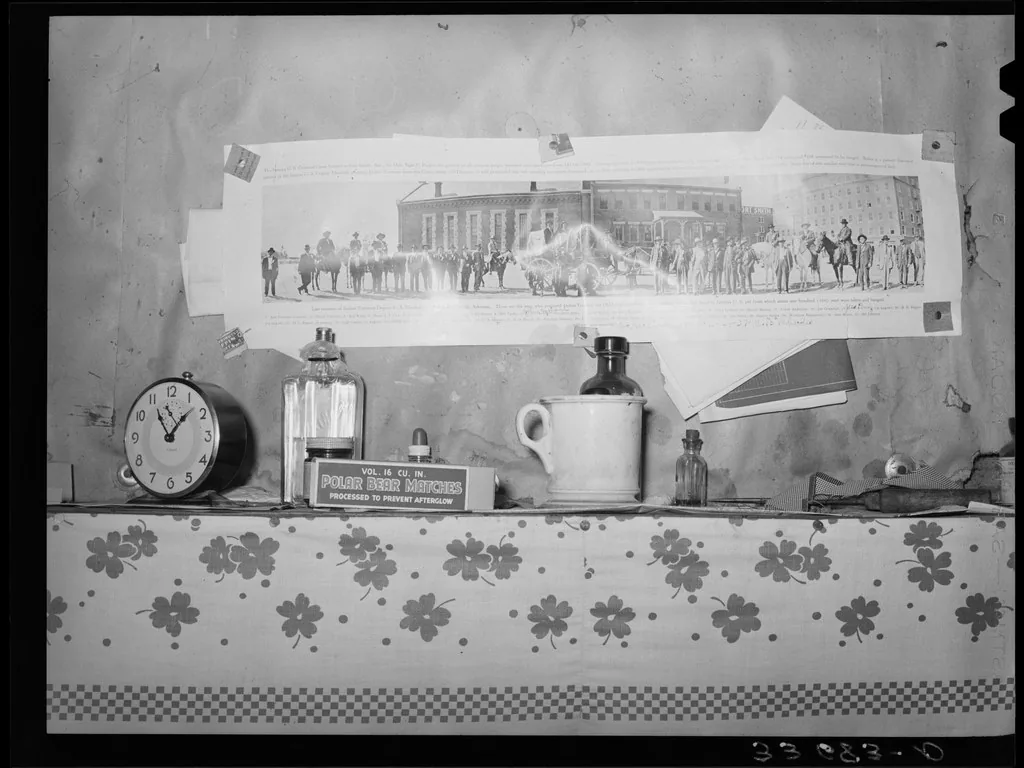
A line in your scan can come from three places, and only one of them is really on the photo. Knowing which saves you from repairing the same mark twice.
Scratches on the print move with it. Turn the print a little, scan again, and the marks turn too. Marks that stay put are dust or a scratch on the scanner glass, so clean the glass and scan again.
Scratches on a negative or slide show up as thin white or black lines on every print made from it. Scan the negative itself as a positive image and repair that scan. Black-and-white film often collects more dust than color, because scanner dust removal usually can't read it.
Group photos and small faces
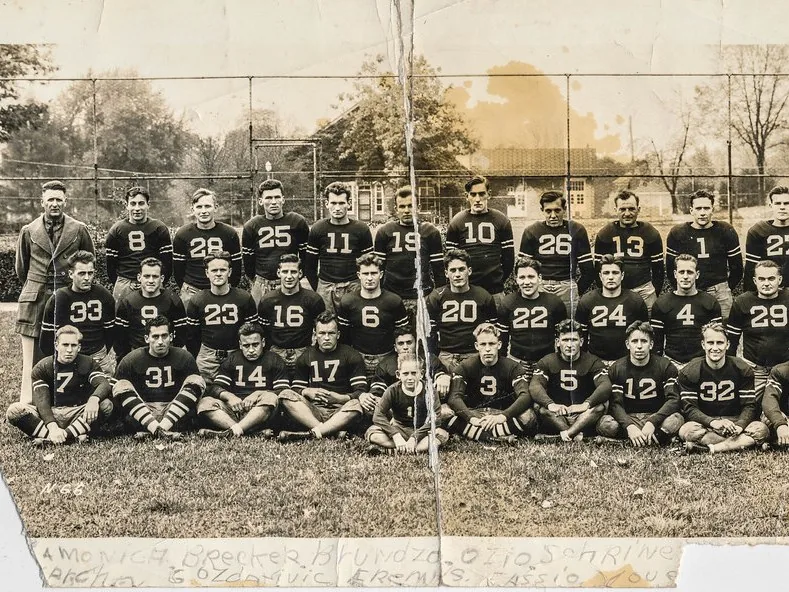
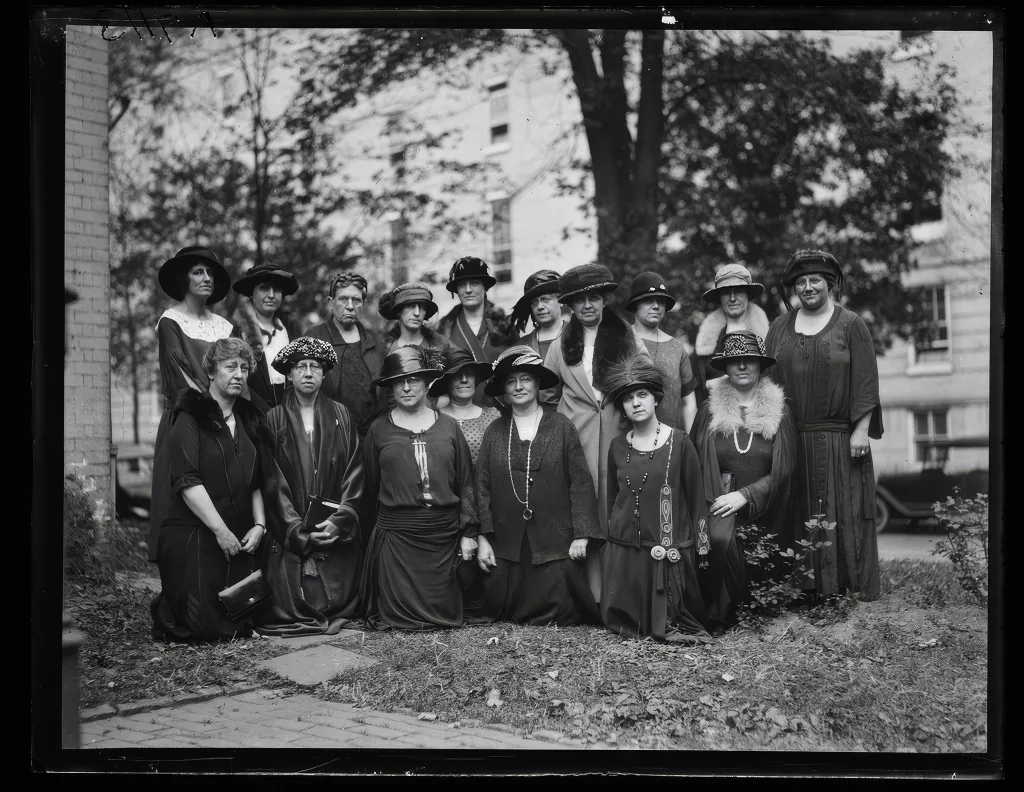
Group photos are where scratches hurt most: one line across a row can cut through several faces at once. Each face in the result is compared with the same face in your scan, not just the largest one.
Small faces have less to work with. In a big group shot, a scratch through a face only a few pixels wide is rebuilt mostly from guesswork, so details can drift. Scan the print at 600 dpi or higher so every face has more pixels to start from.
Then drag the compare line along the row and check each person. If one face is marked, that is the one to look at closely before you print.
Keep the old-photo look
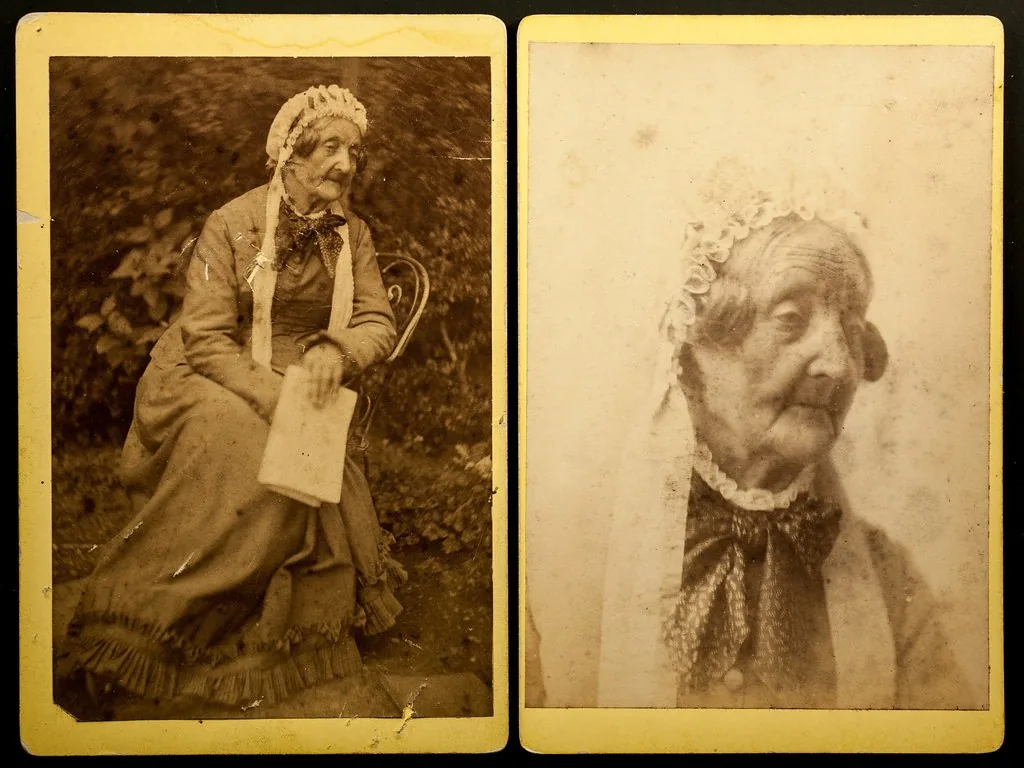
Many AI tools make old photos look new: smooth skin, sharp edges and colors that never existed. That is often the opposite of what you want from a family print.
Here, Add color starts off, so the photo stays black and white or sepia. The repair works on the scratched lines and the area around them, and the paper texture and film grain carry on through the repair.
If you want color, turn it on for a second copy and keep both. Many people frame the original-looking version and share the colored one.
Printing and framing after the repair
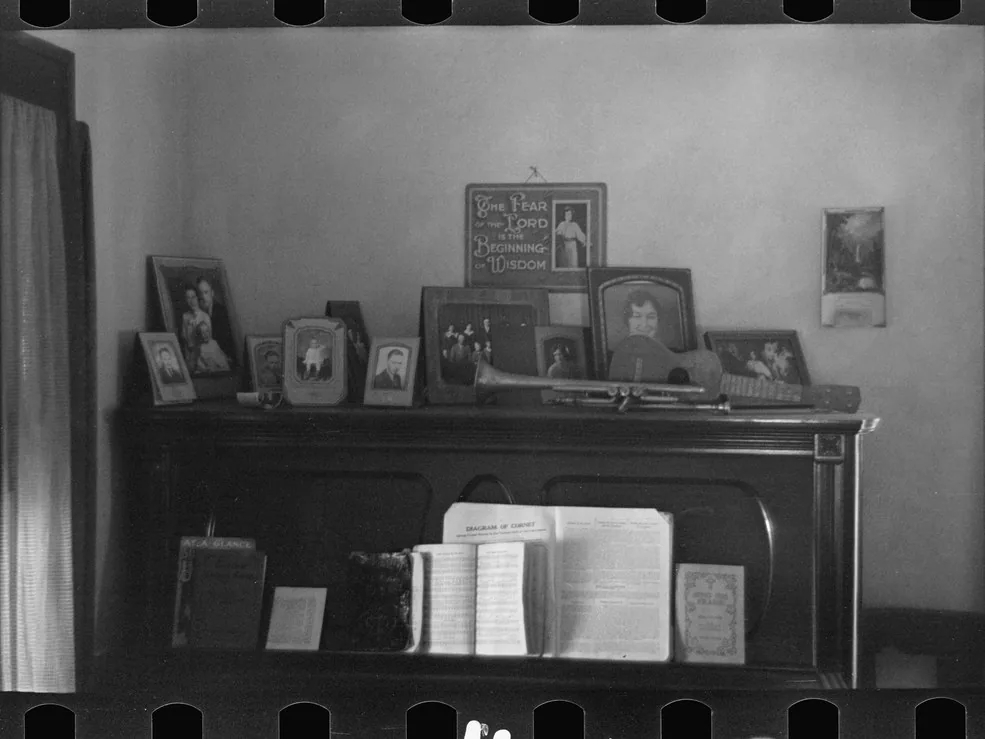
The repaired photo comes back at the size of your scan, so the scan decides how big you can print. A wallet print scanned at 600 dpi will make a sharp 4×6; for 8×10 or larger, scan at 1200 dpi.
Print on matte paper for an old print: it hides small leftovers and looks closer to the original. Glossy paper shows every detail, good or bad.
For a memorial or an anniversary, print the repaired copy and keep the original in an archival sleeve behind it. The scan is your backup if anything happens to either.
Worried about removing scratches from an old photo?
What people ask before they upload, and what actually happens.
I just want the scratches gone, not a new face.”
Every face in the result is compared with your scan. If a face cannot be confirmed, the result is marked for you to check.
What if it removes something that wasn't a scratch?”
A thin necklace or a fold in a sleeve can look like a line. Drag the compare line across jewellery and clothing before you keep a copy.
Will it still look like an old photo?”
Add color starts off on this page, so the result stays black and white, with the paper and grain of the original.
Will it overwrite my original?”
No. Your upload is kept as it is, and you choose whether to download the repaired copy.
Before you upload a scratched photo
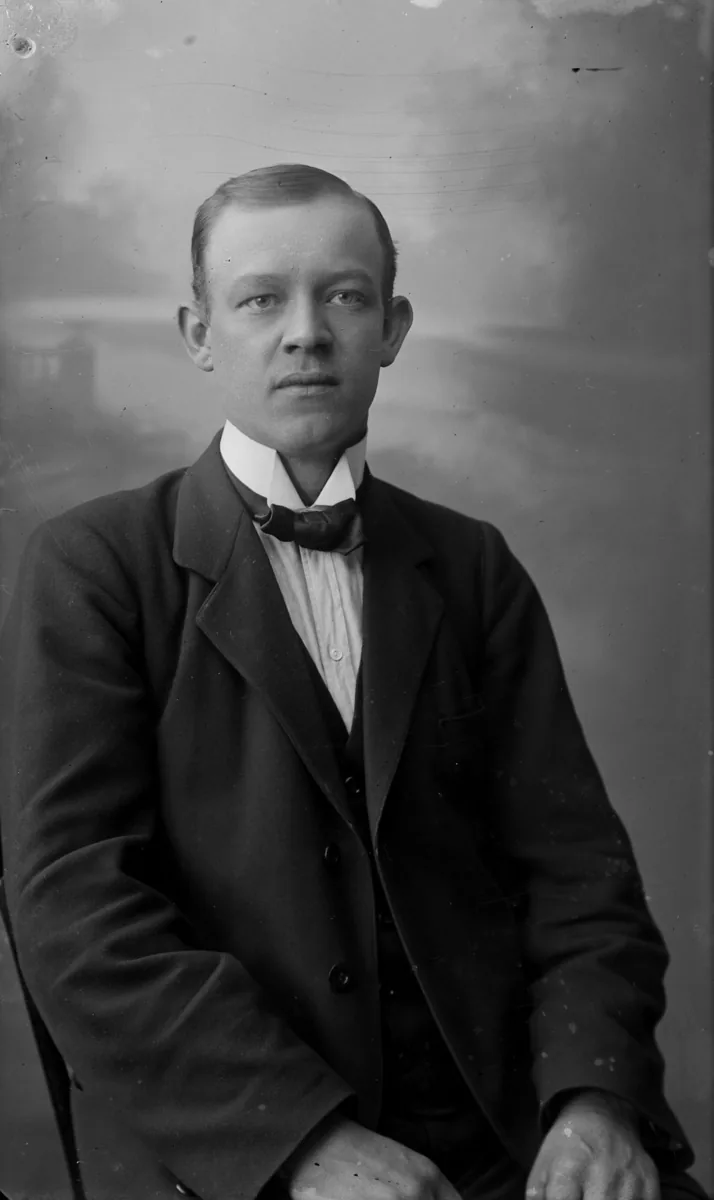
How clean the result is depends on the scan more than on anything else. Take the print out of its frame and lay it on a flatbed scanner at 600 dpi. A phone photo through glass adds glare that looks like new lines, and flash on a glossy print turns into white streaks.
If you have to use a phone, shoot in daylight from a window and tilt the print until the glare disappears.
If there is a negative or a second copy, start from the least scratched one.
Why remove scratches with Revivo
We measured it, so you don't have to guess
We tested how much faces change after repair and published the scores. See AI restoration face test.
The face check runs on every photo
A result whose face cannot be confirmed is marked, and a result showing someone new is not delivered.
You keep the original look
Color is your choice, the result keeps the size of your scan, and the original stays untouched.
Remove scratches from photo FAQ
Can it fix a scratch across a pet in an old photo?
Yes. Fur and whiskers are rebuilt from the picture around the line. The face check is for people, so look at a pet's eyes and nose yourself.
Can it remove scratches from a Polaroid?
Yes, from a scan or a photo of it. Take it out of any sleeve first, and keep the white frame in the picture if you want it in the print.
Can it fix a scratch across an old house or street photo?
Yes. Rooflines, window frames and fences are rebuilt from the lines on either side of the scratch. Check small lettering on signs before you print.
Can I remove scratches without Photoshop?
Yes. Upload the scan here on a phone or a computer; there is nothing to brush or clone by hand.
Can it remove scratches from a color photo, not just black and white?
Yes. Scratches on color prints are rebuilt the same way, and the colors already in the photo are kept. Add color only changes black-and-white photos.
Can it fix scratches across a uniform, medals or badges?
Yes. Buttons, stripes and badges are rebuilt from the detail around the scratch. Small insignia under a deep scratch can come back simpler, so compare them with your scan.

Clear the scratches from one photo today.
Free to try. Your original stays untouched.
Remove scratches